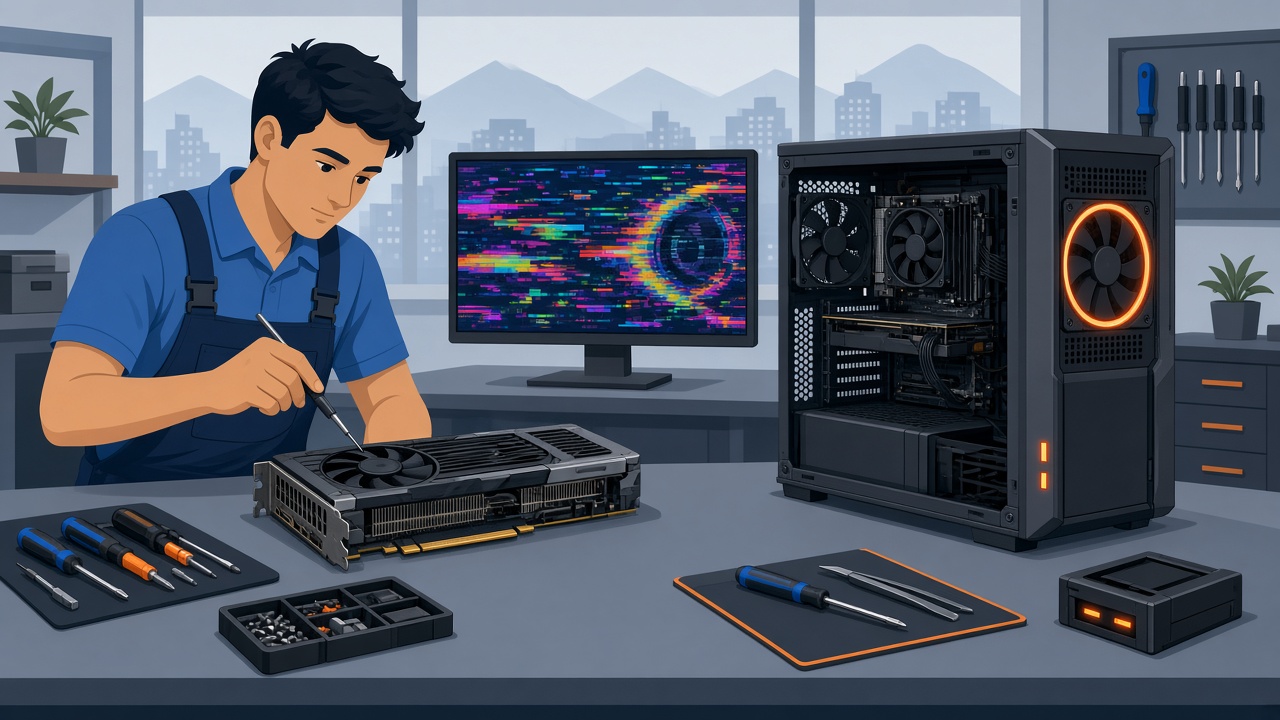
When people talk about graphics card problems, they usually mean something visible: lines on the screen, odd colours, a black image, games that close, or a PC that freezes as soon as something demanding starts. The GPU is not always the part that failed. Drivers, dust, the power supply, a cable, or the monitor are often the real cause. Proper diagnosis avoids buying a new card you do not need — and the opposite: paying for a “cleanup” when the hardware has already failed.
In Ioannina we see both: computers that “lost” the picture after a Windows update and recovered with the right drivers, and cards that showed artifacts before Windows even loaded — software repair cannot fix those. Before you decide what to do, it helps to understand what you are seeing and where it can come from.
How graphics card problems usually look
The symptoms are not all the same. A game that crashes is different from an image that breaks on the first BIOS screen.
- Lines, blocks, wrong colours, or “snow” on the picture (artifacts).
- A black screen, “No Signal,” or an image that disappears after the Windows logo.
- Crashes in games, video editing, or design software, often with a graphics-driver message.
- Sudden restarts or a blue screen when the system loads the GPU.
- A very loud GPU fan, a burnt smell, or unusually high temperature.
- Very low frame rates or stuttering only in 3D, while the desktop and browser still work.
If artifacts appear before Windows loads — on the motherboard logo or in the BIOS — the direction is hardware. If they appear only inside one game or after an update, drivers, temperature, and power come first. The same applies when the computer keeps freezing only when a video or game starts.
What they can be caused by
Drivers and Windows updates
This is the most common “fake” GPU fault. After a Windows Update, a failed driver install, or a clash between old and new packages, the card looks broken while the hardware is fine. A clean reinstall of the correct drivers — not a random pack from an unknown site — often restores the picture and stability. The same happens after a Windows installation without the proper graphics drivers.
Overheating and dust
A graphics card gets hot when it works. If its fans are packed with fluff or the thermal paste has dried out, the system throttles or shuts down to protect itself. On a desktop that looks like crashes after a few minutes of gaming, loud noise, and a hot case. Cleaning dust from the computer and, where needed, replacing the GPU paste are among the most fixable causes.
A power supply that cannot handle the load
A powerful card on a weak or ageing PSU can shut the PC down, restart it, or drop the picture under load. The symptoms look like a dead GPU. Without measurements and testing, it is easy to replace the card when the PSU was at fault — or the other way around. A proper PC repair checks both together.
Cable, monitor, and port
A worn HDMI/DisplayPort cable, a poor adapter, a faulty monitor input, or the wrong input selected can give a black or flickering picture without the card being at fault. Trying another cable and another screen is one of the first safe steps — and often closes the case without opening the PC.
A real hardware fault
When the card’s memory (VRAM) or power circuit has failed, artifacts stay on every screen, even before Windows. The card may not be detected, its fans may not spin, or it may smell burnt. On a laptop the dedicated GPU is often soldered to the motherboard: “GPU repair” then means board-level work, not a simple part swap.
What you can check yourself (safely)
Before you bring the computer in, try the following without opening anything if you are not comfortable doing so:
- Another screen and another cable — Rules out the simplest cause in a few minutes.
- Restart and check the image in the BIOS — If it is clean there and only breaks in Windows, drivers come first.
- Integrated graphics — If the motherboard or laptop has an output from the processor, try that. If the picture is then stable, the problem is the dedicated GPU or its connection.
- Airflow — Do not block the vents. On a desktop leave space behind the case. On a laptop use a hard, flat surface.
- Recent changes — A new game, overclock, Windows update, or new cable. If the problem started that day, start there.
Do not install “miracle” GPU-repair programs from unknown sources, and do not open the card to replace paste unless you have experience: the wrong pressure or material can destroy the chip. If you smell burning or see smoke, cut the power immediately.
When they can be fixed
Problems that come from software, cooling, or peripherals are often fixable without a new card:
- Drivers / Windows: A clean install of the correct drivers or, when needed, a clean operating system.
- Dust and temperature: Internal cleaning, GPU fan check, and new thermal paste where it has dried out.
- Power supply: If the card is healthy but the PSU cannot keep up, replacing the PSU stabilises the system.
- Cable / monitor / port: A new cable or a different output.
- Reseating: On a desktop, the card may not sit correctly in the PCIe slot, or a power cable may be loose.
These are the cases where diagnosis is worth more than a rushed purchase. A card that “failed” from dust or drivers can run for years after proper service — as with any targeted PC repair in Ioannina.
When repairing the same card is not worth it
The honest answer is that it depends on the model and the cost. If artifacts are permanent on every screen before Windows, if the card is not detected at all, or if the circuit is physically damaged, replacement is usually the better path. On older mid-range cards, board-level repair often costs as much as a used or new replacement.
On a laptop the options are tighter. If a soldered GPU has failed, the choices are using the integrated graphics (if they exist and are enough), replacing the motherboard, or a new machine. Nobody should promise “reballing” as a cheap, sure fix. Laptop repair starts from whether the machine is stable without the dedicated card and what each option costs.
When you need the GPU for games or design and the platform is old, the conversation moves to a computer upgrade: a new card needs a PSU, slot, and cooling that can support it. Otherwise you change one part and hit the next limit.
When you need a technical check
Bring the computer in when the picture breaks often, disappears after a short time, smells burnt, shuts down under load, or you cannot tell whether the card, the PSU, or the monitor is at fault. The same applies to a laptop that runs hot and shows lines on the screen.
Diagnosis checks the image before and inside Windows, temperatures, drivers, power, and — on a desktop — a known-good monitor or another GPU when needed. Only then do we recommend cleaning, drivers, a PSU change, a new card, or an upgrade. You pay for the cause, not the symptom.
Frequently asked questions about graphics card problems
Is reinstalling the graphics drivers enough?
Often yes, when the problem appears only inside Windows or in specific games and the image is clean in the BIOS. If artifacts show before the operating system loads, drivers will not fix it.
Does a black screen mean the graphics card is dead?
Not necessarily. It can be a cable, monitor, power supply, port, or settings. Diagnosis starts with the simple checks: another screen, another cable, and integrated graphics if available.
Is it worth repairing the card or buying a new one?
It depends on the model, age, and cause. Cleaning, thermal paste, and drivers often save an otherwise healthy card. If the memory or power circuit has failed, replacement is usually the better value — after a quote, not a guess.
Can a laptop with a distorted image be saved?
Sometimes yes: drivers, cooling, or using the integrated graphics. If a soldered GPU on the motherboard has failed, repair is expensive and not always worth it. Diagnosis tells you whether it pays off.
At ZarrasTech in Ioannina, diagnosis is free and work starts only after you have a clear explanation of the solution and the cost. If the picture breaks, disappears, or games close for no reason, bring the computer in before the fault becomes permanent or you buy a card you do not need.
Need a graphics card check? See PC repair, laptop repair, or call +30 697 448 4324 for a free diagnosis.