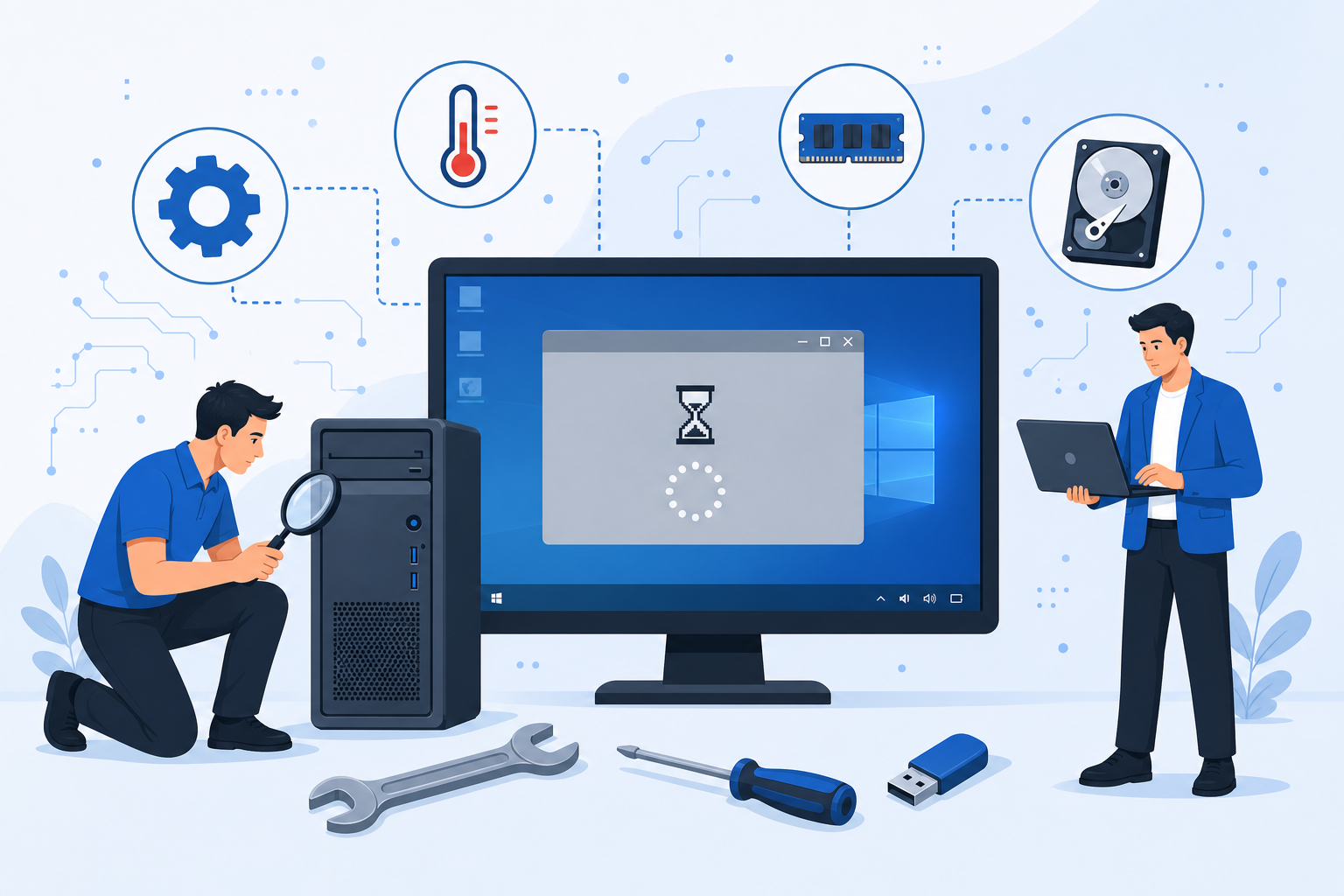
When you say "my computer keeps freezing," you usually mean something specific: the cursor locks up, programs stop responding, the screen goes black for a few seconds, or the whole system crawls even during simple tasks. Not all freezes are the same. Sometimes it's software, sometimes the drive, the memory, overheating, or an infection. A correct diagnosis avoids unnecessary reformatting, needless purchases, and — most importantly — data loss.
In Ioannina we see computers freezing every day because the hard drive has reached the end of its life, because RAM isn't enough for a browser and Office running together, or because the system has been weighed down by years of use. Before deciding what to do, it's worth understanding which pattern you're seeing and what it actually means.
What "freezing" really means
A freezing system shows up in different ways:
- The computer takes excessively long to boot and then keeps lagging on every action.
- A program shows "Not Responding" and the title bar turns white or gray.
- The mouse cursor moves, but nothing opens.
- The screen freezes completely and needs a hard restart with the power button.
- A blue screen (BSOD) appears, or the system restarts suddenly without warning.
Each case points in a different direction. A slow laptop with an old HDD often improves dramatically with an SSD upgrade. A system that suddenly freezes after a short time in use may have a temperature or power issue. A PC that only freezes in the browser might simply have too many tabs open, too little RAM, or adware.
The most common causes of a freezing computer
An old or full hard drive
The mechanical hard drive (HDD) is one of the most common culprits. It slows down boot times, folder opening, and file saving. Once it fills up past ~85–90%, Windows struggles even more. If the drive is starting to fail, freezing may be accompanied by strange noises, files that won't open, or very slow data copying. In these cases, a drive health check comes first — not a rushed reformat.
Insufficient RAM
When you have many browser tabs, a video call, Excel, and email open at once, the computer starts swapping data to the disk instead of memory. This looks like a "freeze": the system seems to think for a few seconds before responding. More RAM doesn't fix every problem, but for modern everyday use it often makes a noticeable difference — especially on laptops with 4 or 8 GB.
Overheating and dust
When the fan runs loudly all the time, the casing gets hot, or the computer slows down after a short period of use, temperature may be the culprit. The system throttles performance to protect itself, or freezes completely. Cleaning the cooling system and restoring proper thermal contact often brings back stability, especially on older laptops.
Viruses, adware, and heavy startup programs
Unwanted software, suspicious browser extensions, and dozens of apps launching with Windows load down the processor and memory from the very first minute. If ads appear for no reason or the browser behaves strangely, start with removing viruses from your computer. Not every slow computer is infected — but when the signs are there, they shouldn't be ignored.
Corrupted Windows or failed updates
After years of installs, failed updates, or power outages during an update, the operating system can become unstable. At that point, a repair, reset, or clean Windows installation should be considered — always with a backup, as described in reformatting without losing your files.
What you can safely check yourself
Before bringing the computer in for diagnosis, try the following without deleting anything important:
- Restart — Not just "sign out." Close all programs and do a proper restart.
- Free disk space — Aim for at least 15–20% free space on the system drive (C:).
- Startup programs — In Task Manager (Ctrl+Shift+Esc), disable anything you don't need at startup.
- Temperature / airflow — Don't cover the vents; on laptops use a hard, flat surface, not a pillow or blanket.
- Recent changes — If the problem started after a new program, peripheral, or update, remove or disconnect it and try again.
If you hear unusual noises from the drive, don't continue heavy use and don't install "miracle" cleaning programs from unknown sources. Your files come first — see also recovering files before they're lost for good.
When freezing isn't fixed by "cleaning up"
If the computer freezes completely and needs frequent hard restarts, if it loses files, if it stops recognizing the drive, or if it restarts without any message, it needs a professional check. The same is true when a reformat "fixed" the problem for a few days and then it came back — that often means the hardware itself isn't healthy.
In these cases, diagnosis examines the drive (SMART data), memory, temperatures, power supply, and overall system stability. Only afterward is an upgrade, repair, or reinstall recommended. This way you avoid paying for a fix that doesn't match the real cause — as with any proper PC repair in Ioannina or laptop repair.
Reformat, SSD, or something else?
There's no single answer for everyone:
- SSD: Often the biggest improvement for a slow laptop/PC with an HDD.
- RAM: When the system "thinks" with many programs open.
- Cleanup / virus removal: When there's adware or a heavy startup with no hardware problem.
- Reformat / clean install: When the software has become bogged down or infected and targeted fixes aren't enough — see when a reformat is actually necessary.
- Cooling / power supply repair: When the device overheats or shuts down under load.
The cheapest solution isn't always the right one. The right one is the one that fixes the actual cause and protects your data.
Frequently asked questions about a freezing computer
Is it enough to just restart every time?
It can help temporarily, but if it keeps happening, it's covering the symptom without fixing the cause. It's better to identify what's triggering it.
Will I lose my files if I bring in my computer?
Not automatically. In diagnosis, priority is given to inspection and, where needed, safely copying your important folders before any invasive work begins.
Is it worth buying a new one instead of repairing?
It depends on the age, the cost of repair/upgrade, and how you use it. Often an SSD or a clean install adds years of good performance. Free diagnosis helps you decide based on facts, not guesswork.
Does freezing in the browser mean a virus?
Not always. It could be too many tabs, too little RAM, a slow drive, or heavy extensions. But if ads appear or your homepage changes without permission, it's worth checking for adware/malware.
At ZarrasTech in Ioannina, diagnosis is free and work only begins once you've been clearly informed about the solution and the cost. If your computer keeps freezing, slowing down, or locking up without warning, bring it in for an assessment before the problem turns into data loss.
Need a diagnosis because your computer keeps freezing? Check out our PC repair, our laptop repair, or call +30 697 448 4324 for a free diagnosis.