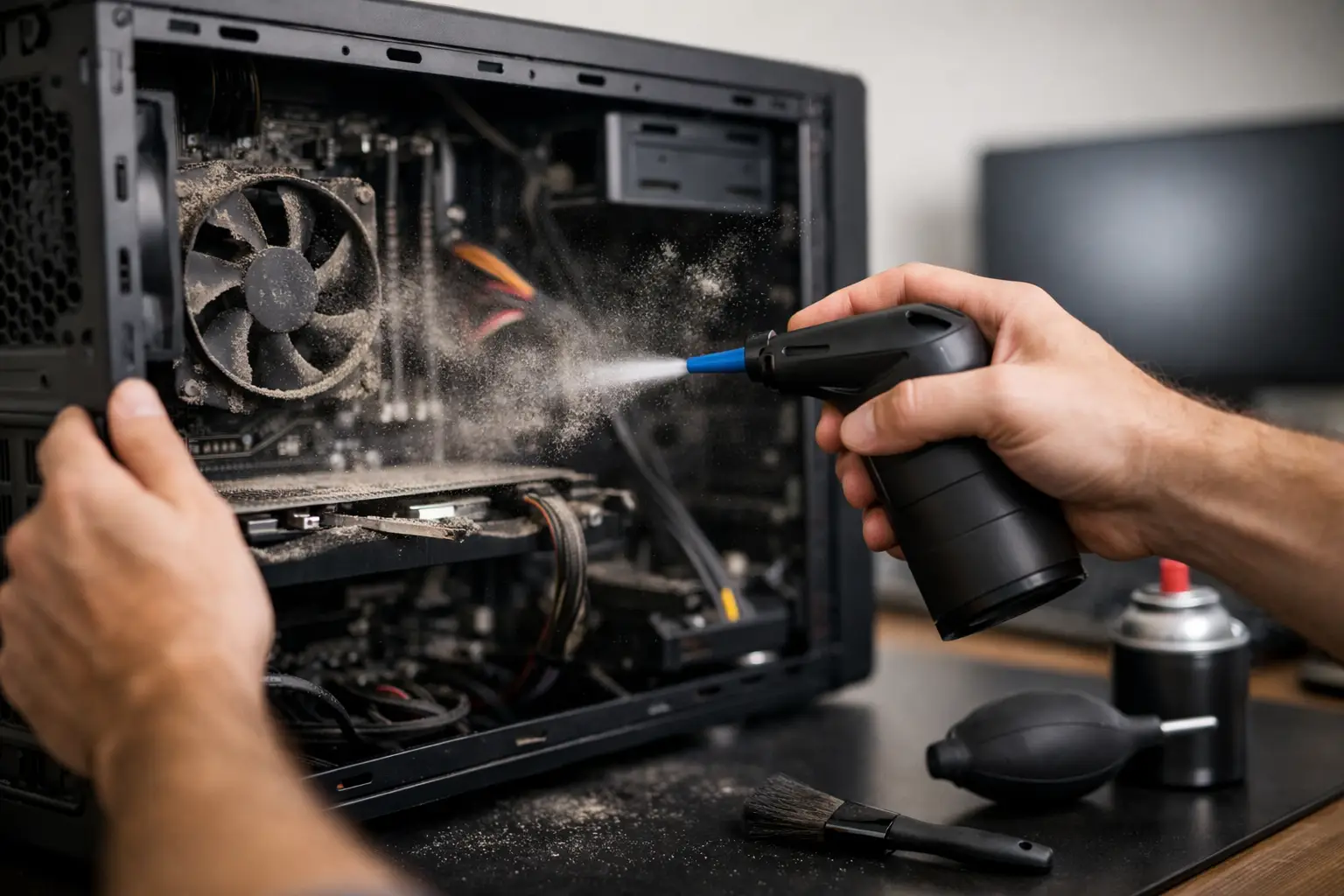
A computer that suddenly sounds like a vacuum cleaner, runs hot on your desk, or shuts itself off isn't always broken. Very often it needs cleaning dust from your computer. Dust doesn't just sit on the case or keyboard. It gets inside, clogs heatsink fins, and makes it harder for fans to move heat away.
For a computer used daily at home or in the office, a proper internal cleaning is preventive maintenance. It can reduce noise, help performance, and — most importantly — protect components that run for hours at high temperatures. You don't need panic or an unnecessary new PC purchase. You need a proper check and a clear picture of the device's real condition — as with PC repair in Ioannina and laptop repair.
Why dust affects PCs and laptops so much
Every computer produces heat. The CPU, graphics card, storage, and power supply in desktop PCs need a steady flow of air. Fans pull air from the room, but they also pull in lint, pet hair, smoke, and fine dust.
Over time this builds up on filters, vents, and heatsinks. A heatsink is the metal part with thin fins that carries heat away. When it's full of dust, air can't pass through properly. The fan spins faster, makes more noise, and yet the temperature stays high.
On laptops the problem often shows up sooner because internal space is tight and vents are small. On a desktop, how much dust collects depends heavily on where the case sits. A PC under the desk, near a rug or radiator, usually needs checking more often.
High temperature doesn't always mean a component will burn out immediately. Modern devices have protection mechanisms. They may automatically reduce performance to stay safe. That explains why a laptop slows down on simple tasks, the fan runs hard during video calls, or the system freezes when many programs are open.
Signs that your computer needs dust cleaning
The most obvious sign is constant noise. If fans run loudly even when you only have a browser or a document open, you need a check. The same applies when a laptop gets hot underneath or a desktop blows very warm air.
Also watch for unexpected restarts, shutdowns during gaming or heavy work, and performance drops that weren't there before. A computer can also slow down for other reasons — an old hard drive, low RAM, malware, or faulty software. That's why dust shouldn't be treated as the only explanation without diagnosis. You might need an SSD upgrade on a laptop or another fix instead.
If you see dust stuck in the grilles, don't try to push it inward with a vacuum or strong blowing. It can move deeper into the system or get packed against the heatsink. External cleanliness helps visually, but it doesn't replace internal cleaning.
What proper professional cleaning includes
Cleaning isn't just a blast of air inside the case. The right process starts with a visual and functional check to see whether temperature and noise really come from dust buildup. Then the device is opened with the right tools and disconnected safely where needed.
Fans, heatsinks, vents, filters, and dusty surfaces are cleaned. On laptops, air outlet areas get special attention because a compact layer of lint often acts like a blockage.
In many cases thermal paste is also evaluated. It's the material between the CPU and the heatsink that helps transfer heat. If it has dried out or lost effectiveness, replacing it can make a real difference. That isn't needed on every cleaning, though. It depends on the device's age, temperatures, and how it's used.
After reassembly, testing should continue with a functional check. That confirms fans work correctly, there's no unusual noise, and the device runs steadily. If something else is found — a worn fan or weak laptop battery, for example — the customer should be informed before any extra work is done.
Can you do it yourself?
For a desktop with easy access and basic familiarity, gently cleaning removable external filters at home can be fine. Fully shut down the computer, unplug it, and clean only removable filters according to the manufacturer's instructions. Don't use liquids inside the case and don't touch components without reason.
On laptops, Macs, and slim professional machines, the situation is different. Panels may use special screws, delicate cables, or a battery that must be disconnected before any work. Opening it wrong can break plastic clips, damage a cable harness, or cost more than preventive cleaning.
Also avoid uncontrolled compressed air. If a fan spins too fast from blowing, it can be stressed. Dust blown out of one area can land somewhere else. The safe choice — especially when there is overheating or shutdowns — is a professional diagnosis.
How often does maintenance make sense?
There's no one answer for everyone. For a computer in a clean office, a check every 12 to 18 months is often enough. With pets, smoke, rugs, dusty work environments, or many daily hours of use, every 6 to 12 months may be better.
Professional machines deserve even more attention. A laptop used for invoicing, design, video calls, or daily customer work shouldn't reach the point of shutting down from overheating. Preventive maintenance usually costs less than downtime, lost time, or replacing a component.
Service without guesswork
At ZarrasTech, the process starts with a free diagnosis to see whether dust is the main cause or something else is involved. You're then told clearly what work is recommended and what it costs. No work starts without your approval, and there are no hidden charges.
That matters because cleaning can reveal other issues that need attention without meaning everything must be replaced. For example, a fan might be suggested for replacement only if it shows real wear, or an SSD upgrade only if that actually solves sluggish performance. The right solution is the one that fits your need, not the most expensive one.
Frequently asked questions
How much does dust cleaning cost?
It depends on the device type (PC, laptop, gaming PC) and how much dust has built up. After the free diagnosis you're told the cost before any work begins.
Can I clean my laptop myself?
On many models, not safely. Laptops and Macs have sensitive construction, and a wrong attempt can cost more than professional cleaning. On a desktop, only removable external filters can be cleaned at home — with care.
How often should cleaning be done?
In a clean office, usually every 12–18 months. With pets, smoke, rugs, or heavy use, every 6–12 months. If the fan runs loudly or the device shuts down from heat, don't wait — book a check.
If your computer runs hot, sounds too loud, or hasn't been serviced in a long time, don't wait for a bigger fault. An early check gives you a clear picture, protects your equipment, and lets you keep working with less noise and more confidence. See PC repair or laptop repair, contact us via the contact page, or call +30 697 448 4324.