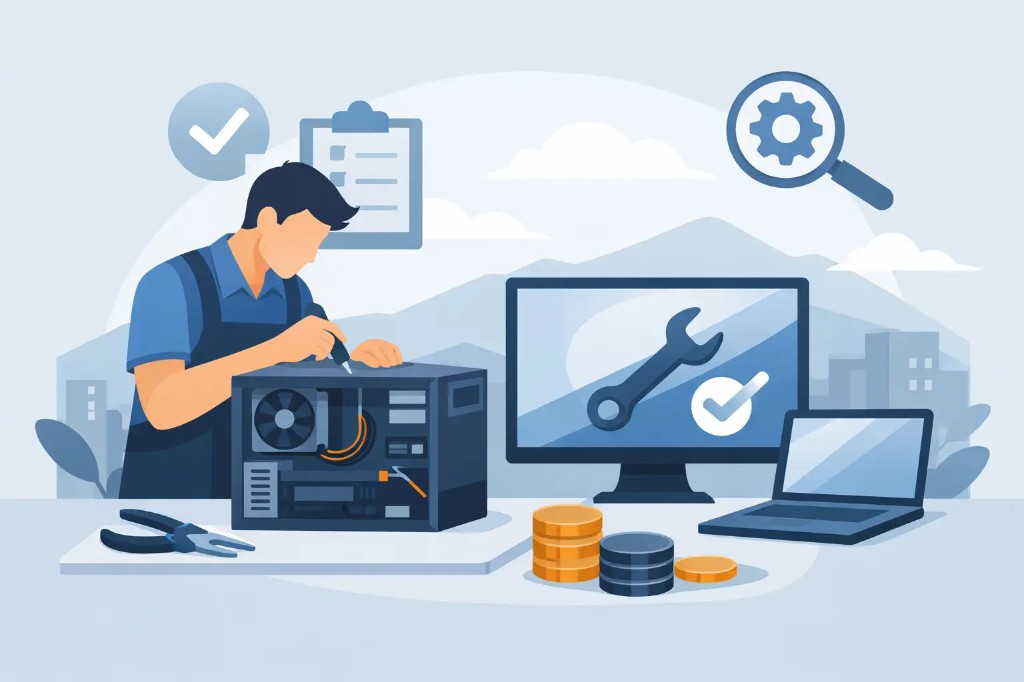
A computer that's slow to start, freezes during work, or shuts down unexpectedly isn't just an annoyance. For a professional, it can mean lost files and delays. For a household, it can mean interrupted classes, communication, and daily tasks. PC repair in Ioannina needs a proper diagnosis before any intervention, so you know what's actually wrong, what's worth doing, and how much it will cost.
Not every slow computer needs to be replaced. Often, a cleaning, malware removal, or an SSD upgrade brings the PC back to the speed it had when it was new. Other times, the fault genuinely requires a part replacement. The difference lies in proper inspection and honest communication before any work begins.
When You Need PC Repair in Ioannina
There are warning signs you shouldn't ignore. If the computer makes unusual noise, runs hot, shuts down on its own, or shows blue screens, it needs a technical check. The same applies when it won't turn on at all, doesn't recognize its drive, or shows no image on screen.
Low performance is also a common reason for service. A PC that takes several minutes to boot, is slow to open programs, or freezes with several browser tabs open may have a full or failing drive, too little RAM, overheating, or software that's bogging the system down. The right fix depends on how the computer is used, not just on the symptom alone.
For example, on an office PC used for email, invoicing, and documents, an SSD and enough RAM may be the most cost-effective upgrade. On a gaming PC or one used for demanding design software, the graphics card, power supply, and cooling may need checking. There's no point replacing parts without first identifying the real cause.
What a Proper Diagnosis Includes
Repair shouldn't start with guesswork. First, the core components of the system are checked: drive, RAM, power supply, temperatures, motherboard, graphics card, and operating system. At the same time, we check whether the fault stems from software, a virus, or program incompatibility.
Free diagnosis only has value when it comes with a clear explanation. It's not enough to hear that "it needs fixing." You need to know which component or setting is causing the problem, what solutions exist, and which option is recommended. If repair isn't worth it, that should be stated clearly.
At ZarrasTech, no work begins without prior cost approval. That means you're in control before any cleaning, formatting, part replacement, or upgrade takes place — with no hidden charges and no confusing technical jargon.
The Most Common Jobs on Desktop Computers
Cleaning and Overheating
Dust inside a computer case isn't just a cleanliness issue. It blocks airflow, raises temperatures, and forces fans and components to work harder. Over time, the PC can become noisy, lose performance, or shut down to protect itself.
A proper internal cleaning, along with checking the fans and replacing thermal paste where needed, helps the system run more reliably. It's especially useful for computers that run long hours, sit in dusty environments, or are used for gaming.
SSD and RAM Upgrades
The mechanical hard drive is one of the main reasons many older PCs feel slow. Installing an SSD noticeably reduces Windows boot time and makes programs respond faster — as explained in our SSD upgrade guide for laptops, which applies equally to desktops. Adding RAM helps when the computer struggles with multiple applications, video calls, or large work files.
Upgrades aren't one-size-fits-all. The right SSD capacity, RAM compatibility, and file migration all need to be checked before any purchase. In many cases, a targeted upgrade costs far less than a new computer and fully covers the user's needs.
Format, Windows Installation, and Virus Removal
Pop-ups, strange ads, unfamiliar programs, or a sudden drop in performance can point to malware infection. Virus removal from a computer requires care, especially when work files, photos, or saved passwords are stored on the machine.
Not every problem requires a format. But when the operating system is severely bogged down, has serious corruption, or the computer needs a clean reinstall, format can be the safest solution — see when Windows installation is actually needed. Before that, it's important to check for and, where possible, rescue important files.
Drive, Power Supply, and Graphics Card Faults
A drive that shows errors, is excessively slow, or isn't recognized can put your data at risk. In this case, the priority is assessing the condition and attempting file recovery, not a rushed reinstall.
The power supply is often responsible for sudden shutdowns, failed boots, or instability. The graphics card can cause a black screen, visual glitches, or crashes in games and applications. These faults require measurements and testing, since the same symptoms can also come from a different component entirely.
How to Decide Whether Repair Is Worth It
The honest answer is: it depends. If the computer meets your needs and just requires an SSD, RAM, cleaning, or a software fix, it's usually worth keeping. But if it's on a very old platform, has a serious motherboard fault, or requires multiple expensive replacements, a new or tested refurbished option may make more sense.
The decision shouldn't be based on the PC's age alone. What matters is how you use it, which components it already has, how much the repair costs, and how many more years it can realistically serve you. A five- or six-year-old computer can become excellent for office use with the right upgrade. Conversely, a newer computer with a fault in an expensive component needs careful cost evaluation.
A Process That Keeps You Informed
Technical support should be simple for the customer. You drop off the PC for inspection and describe the problem as specifically as you can: when it happens, whether there's any noise, whether there was a power outage beforehand, or whether any message appears on screen.
Diagnosis follows, along with an explanation of the findings. Before any repair, you receive a quote for the cost and time required. Only after your approval does the work proceed. At the end, the computer is checked again to make sure it's handed back functional and stable.
For businesses and freelancers, downtime is critical. Prompt service, correct prioritization, and the option of a temporary laptop rental when needed can significantly limit disruption to your work.
Small Steps That Prevent Big Faults
Keep backups of your important files on an external drive or a trusted storage service. Don't ignore repeated shutdowns, and don't keep using a drive that's making unusual noises. Also avoid unfamiliar "cleaner" programs and don't open unexpected email attachments.
Periodic cleaning and a check-up before a fault becomes serious usually cost less than an emergency repair. If your PC shows even small but recurring issues, early diagnosis is the most practical way to protect your equipment, time, and files.
Frequently Asked Questions About PC Repair
Do you offer free diagnosis?
Yes. We first carry out a full inspection and explain what we found, what solutions exist, and the cost. No work begins without your approval.
Is it worth upgrading to SSD and RAM instead of buying a new PC?
Often, yes — especially for office work, browsing, and everyday use. If the platform is very old or there's a serious motherboard fault, a new or refurbished device may be the better value.
Will I lose my files during a format or drive replacement?
File rescue is assessed before any format or drive replacement, wherever possible. If the computer still turns on, back up your files yourself as soon as you can too.
Need a PC check-up in Ioannina? See PC repair or call +30 697 448 4324 for a free diagnosis.