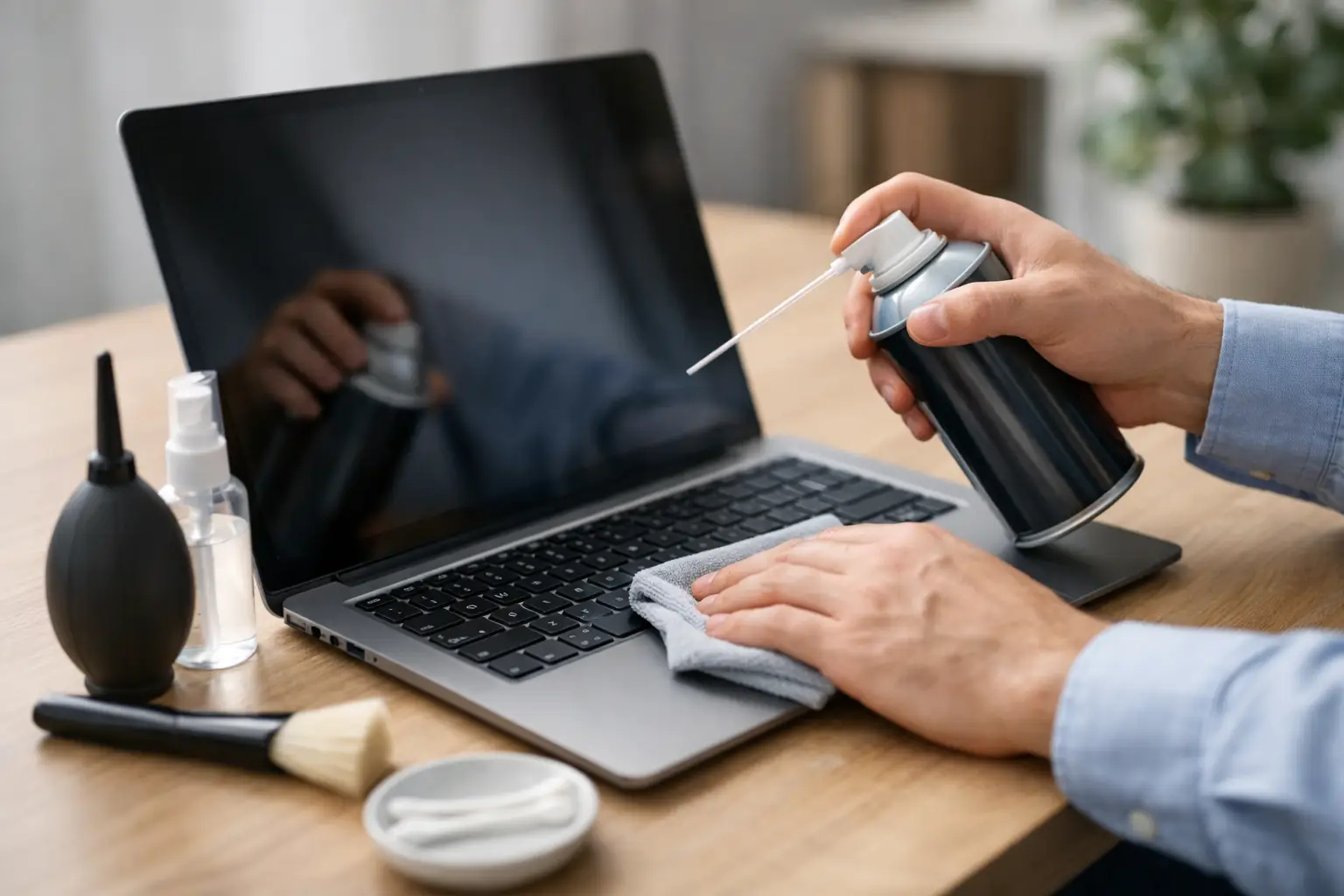
A laptop that runs hot, gets louder, or has a screen full of fingerprints doesn't always need repair. It does need proper care. Learning how to clean your laptop properly protects the display, keeps dust out of the keyboard, and helps the cooling system work more efficiently. The key word is moderation. Too much moisture, pressure, or the wrong cleaners can cause more damage than dirt.
Before you start: shut down and unplug
Never clean a laptop while it's charging or in sleep mode. Shut it down fully, unplug the charger, and remove peripherals such as a mouse, USB stick, external drive, or headphones. Remove the battery only if your model allows it easily and you know the procedure.
Let the device cool down, especially if you've been using it for a long time or running demanding tasks. A hot laptop isn't the right moment for wiping or blowing air. Work on a stable, clean surface with good lighting so you can see dust in vents or debris between keys.
For safe external cleaning you usually need a clean microfiber cloth, a second dry cloth, and — if needed — a screen-safe cleaning solution. The cloth should be lightly damp, never wet.
How to clean the outside properly
External cleaning is straightforward if you don't rush. Start with the lid and base, where dust, hand oils, and small particles collect. Wipe surfaces with a dry microfiber cloth. If marks remain, spray a tiny amount of cleaner onto the cloth — not directly on the device — and wipe gently.
Avoid glass cleaner, bleach, acetone, strong detergents, and wet wipes with unknown ingredients. They can damage plastic, leave haze, or seep into openings. The same applies to pure alcohol on sensitive surfaces when you're unsure of the materials.
The screen needs the gentlest touch
The display is where most mistakes happen. Don't press the panel with your finger or palm, and don't use kitchen paper, tissues, or rough cloths. They can leave micro-scratches, especially on matte and touch screens.
First wipe the screen with a dry microfiber cloth in gentle side-to-side strokes. If smudges remain, use a very small amount of LCD/LED screen cleaner on the cloth. Never spray directly onto the screen. Even a few drops running to the bottom bezel can reach internal parts.
On MacBooks, touch laptops, and models with anti-glare coatings, be even more careful. The right product depends on the screen type. If you're unsure, use only a dry microfiber cloth rather than experimenting — or see Mac repair if damage has already occurred.
Keyboard and touchpad without liquid between the keys
The keyboard collects crumbs, dust, and oils from your hands. Tilt the closed laptop slightly and give the bottom a few gentle taps. Don't shake it hard. Then use a soft brush or short bursts of compressed air to move dust out from between keys.
Hold the compressed-air can upright and at a short distance. If you tilt it or spray continuously, it can release moisture or very cold propellant. You don't need excessive force. The goal is to move dust outward, not push it deeper inside.
For key surfaces and the touchpad, use a very lightly damp cloth. Pay special attention to key edges, USB ports, the charging port, and speakers. Liquid under a key or inside a port can cause corrosion and failures that show up later.
Vents and fans: when external cleaning is enough
Vents are usually on the side, behind the screen hinge, or on the bottom. When they fill with dust, air can't circulate properly. The laptop runs hotter, the fan works harder, and in some cases performance is reduced to protect the CPU.
You can brush vents externally and use short compressed-air bursts. Don't put a vacuum nozzle on the openings and don't use a hair dryer. A vacuum can create static electricity; a hair dryer blows hot air and often moves dust the wrong way.
If you see packed lint inside, the fan is constantly loud, or the laptop shuts down from overheating, external air isn't enough. Internal cleaning is required — as we explain in our article on cleaning dust from your computer. Disassembly isn't the same on every model; opening it wrong can break clips, cables, or the lid frame.
Don't open the laptop just because it has dust
Some guides make internal cleaning look like a five-minute job. In practice it depends on the model. On some laptops the fan is easy to reach. On others you must remove the battery, heatsink, cables, SSD, or even the motherboard to do it properly.
Professional cleaning isn't just "blowing out" dust. It includes fan inspection, heatsink cleaning, temperature checks, and — where needed — replacement of thermal paste. That paste transfers heat from the CPU to the heatsink. If it has dried out, the device may still overheat even after dust is removed.
The right call is simple: if you're comfortable with external cleaning only, stay there. For the inside, ask a technician. At ZarrasTech diagnosis is free and no work starts without clear information and your approval of the cost.
How often should you clean?
For a home-use laptop, external cleaning every two to four weeks is usually enough. If you eat at the desk, have pets, or use the device in smoke, dust, or high humidity, care more often.
Internal cleaning is typically needed every 12 to 24 months. There's no one rule for everyone. A professional laptop used many hours daily, a gaming model, or a machine used on blankets and sofas may need checking sooner. Soft surfaces block bottom vents and raise temperatures significantly.
Signs that a cloth isn't enough anymore
Book a technician if you notice consistently high temperature, loud fan noise, sudden freezes, unexpected shutdowns, or noticeable battery drain when the device runs hot. If coffee, water, or another liquid was spilled on the keyboard, shut down immediately, unplug, and don't power it on again to "see if it works." Fast, proper diagnosis can limit the damage.
Frequently asked questions
Can I use glass cleaner on the screen?
No. Glass cleaners can leave haze, damage anti-glare coatings, or seep inward. Use screen-safe fluid on a microfiber cloth — or a dry cloth only.
How often is external cleaning needed?
For normal home use, every 2–4 weeks. With pets, smoke, or eating at the laptop, more often. Check vents when the fan sounds loud.
When is internal cleaning needed?
When the fan runs constantly loud, the device runs hot or shuts down from overheating, or it's been more than 12–24 months since the last check. Don't open it yourself — ask for a free diagnosis.
A clean laptop isn't just nicer to use. It's a small, practical habit that helps the machine run cooler and last longer. Keep external cleaning simple, avoid liquids, and leave internal work to experienced hands when the first signs of overheating appear. See laptop repair, contact us via the contact page, or call +30 697 448 4324.