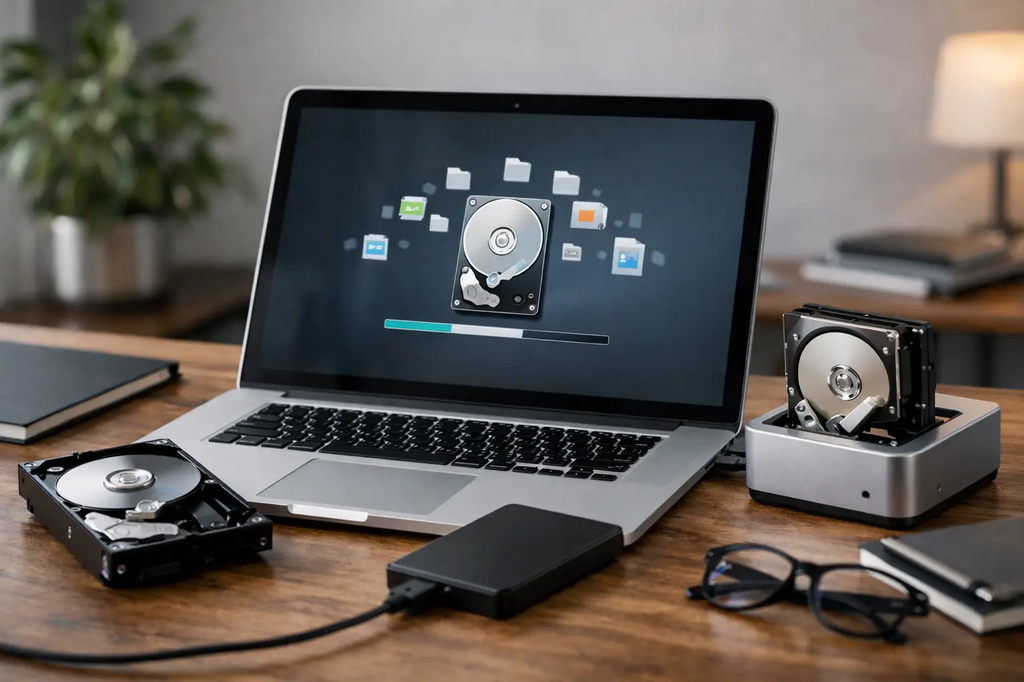
The laptop turns on, but the desktop is empty. Or, worse, it shows a message saying the drive isn't recognized. In a situation like this laptop data recovery example, the user's first move can determine whether their files are saved or whether things get harder. The right reaction isn't to keep trying to restart it over and over.
A drive making unusual noises, a laptop that freezes during startup, or a folder that "disappeared" don't always mean permanent loss. But they do mean you should stop using the device, especially if it contains business documents, photos, assignments, or client files. For general first-response steps, see our guide on recovering files before they're lost for good.
A laptop data recovery example after a drive failure
Let's look at a typical case. A professional brought in his laptop because Windows suddenly stopped starting. He had already tried turning it off and on twice, after which an automatic repair screen appeared. The drive held invoices, Excel files, quotes, and photos from years of work.
The initial diagnosis showed that the mechanical hard drive had started becoming unstable when reading data. It wasn't fully destroyed, but every new boot attempt was putting more strain on the failing part of the drive. At this point, a reformat wouldn't have been a solution. It would have erased the file structure and reduced the chances of a proper recovery.
The safe approach was to first copy the accessible data to another storage medium. The work didn't start with a "blind" repair. The drive's condition was checked, the volume of data was estimated, and the customer was informed about what could realistically be saved. Once he approved, the essential folders were recovered and transferred to a new storage device.
The laptop was then fitted with an SSD. Windows was reinstalled, and the recovered files were organized into clear folders. The customer didn't just get a computer that turns on. He got access to the files he needed to keep working, along with a faster, more reliable device — as often happens after a proper SSD upgrade on a laptop.
What changes the odds of recovery
Data recovery doesn't have one answer that fits every case. It depends on the type of fault, whether the drive is still readable, whether new data has been written over it, and what actions were taken before it reached a technical inspection.
If a folder was accidentally deleted and the laptop wasn't used afterward, the odds are usually better. If a reformat was done or Windows was reinstalled, recovery may still be possible, but it often requires more work, and there's no guarantee everything will be found with its original names and folder structure intact.
On a mechanical hard drive, strange noises, freezing, and very slow access are warning signs. On an SSD, the situation is different. SSDs are fast and reliable in everyday use, but in certain deletion scenarios the way they manage data significantly limits recovery. That's why we never promise a result before running a diagnosis.
There are also cases where the problem isn't the drive at all. A laptop may fail to turn on due to a fault in the power supply, the motherboard, or the screen, while its files remain completely intact. In these cases, accessing the data can actually be simpler, as long as a proper inspection is done instead of rushing to replace parts — as with any proper laptop repair in Ioannina.
What to do immediately when files go missing
Staying calm protects your data more than any random recovery program. If the laptop shows drive errors or won't start, avoid restarting it repeatedly. Don't proceed with a reformat, a Windows reinstall, or a "fix" from an unknown tool, especially if you don't have a backup.
Four simple steps are needed:
- Stop using the laptop as soon as you notice a drive problem or missing important files.
- Don't save new files, download apps, or install updates on the same storage device.
- Note down what happened beforehand: a drop, a power outage, an error message, a deleted folder, or a failed update.
- Bring the device in for inspection along with the charger, and explain which files are the priority.
If it's a company laptop, notify your IT manager before taking any action. A file may exist in a company cloud, on an external drive, or on another user's device on the network. The right investigation starts by figuring out where the last safe copy might be.
The inspection process without unnecessary risk
The correct technical approach isn't based on guesswork. First, we check whether the device recognizes the drive and whether there are signs of physical or logical damage. Then we determine whether it's safe to attempt reading and copying data, or whether a more careful process is required.
At ZarrasTech, diagnosis is free, and before any work begins you're informed about the proposed solution and its cost. Recovery, a drive replacement, or a reformat never start without your approval. This matters especially when the device is old and you need to decide whether repair, upgrade, or replacement makes more sense.
In many cases, the best option is a combination: recovering the data that's available and replacing the failing drive with an SSD. This way you avoid investing further in a component that's already showing signs of failure. But if the laptop has other serious faults as well, transferring the files to a new or refurbished computer may be the more economical choice.
Which files are worth prioritizing
When there's a large volume of data or the drive is unstable, not every file has the same priority. Most users think of photos first, but for a professional, client files, accounting documents, emails, or a program's database may actually be more critical.
Before handing over the laptop, think about which folders are genuinely necessary. Usually this means Desktop, Documents, Downloads, Pictures, and files from specific applications. If you use invoicing software, design applications, or a specialized business tool, mention it. Data from these programs may be stored in a different location than your usual documents.
Recovery doesn't always mean every file will open perfectly. A video may be partially recovered, a document may need repair, or some file names may be lost. Honest communication at this stage is better than a certainty that can't actually be guaranteed.
After recovery: how to avoid ending up here again
The best recovery is the one you'll never need. An external backup and a second copy on a reliable online service cover different risks. An external drive helps with a quick restore, while an online backup offers better protection against theft, fire, or serious device damage.
You don't need to back up everything everywhere. Start with the folders that change often and have real value: work documents, photos, financial files, and client data. Check once a month that the backup actually opens. A backup that's never been tested isn't guaranteed to help you when you need it.
If your laptop is showing signs of wear, don't wait until it stops completely. An early inspection and transferring your files to a safe location usually costs less, causes less disruption, and lets you keep working without relying on luck.
Frequently asked questions about laptop data recovery
Is it worth restarting over and over?
No, not when there are signs of drive failure. Every new boot attempt can put more strain on the failing part and reduce the chances of recovery.
Is a reformat the solution when Windows won't start?
No, not before your files are secured. A reformat erases the data structure and can make recovery harder or even impossible.
Is the diagnosis chargeable?
At ZarrasTech, diagnosis is free. Recovery, a drive replacement, or a reformat never start without informing you and getting cost approval first.
Need an inspection for file recovery in Ioannina? Check out our laptop repair or call +30 697 448 4324 for a free diagnosis.